How To Manage Your Notifications In HEY Mail. In HEY notifications are kept to a minimum. However, you can get notified of any email that enters the Imbox or of any email you receive from a specific contact, domain or email thread.
To receive a notification each time an email lands in your Imbox…
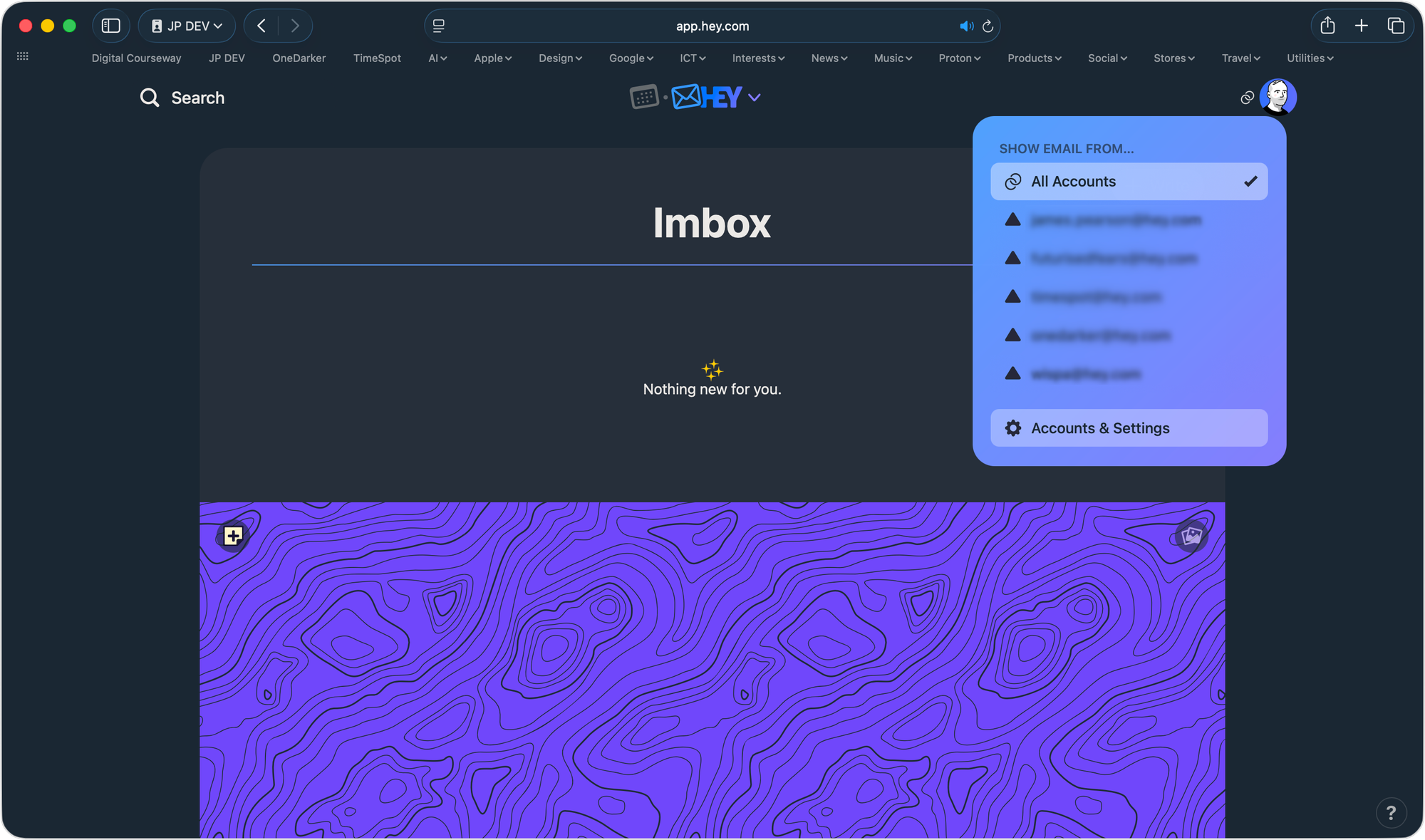
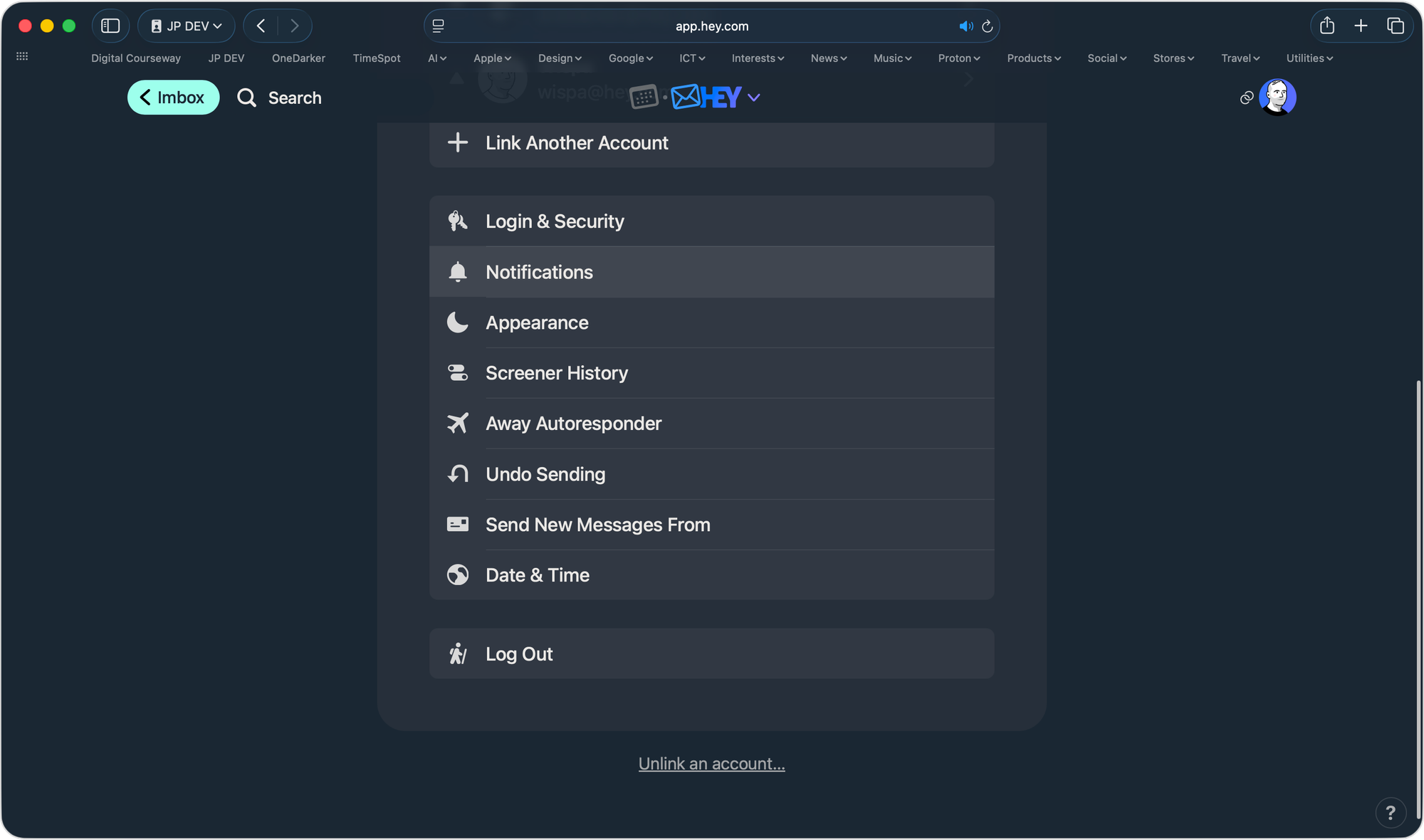
Click / Tap on your profile avatar (top right corner) and go to Accounts & Settings > Notifications (or Settings > Notifications on a phone or tablet).
The Accounts & Settings option in the Profile (avatar) menu.The Notifications option in the Accounts & Settings menu.
Click / Tap on the toggle to enable Imbox notifications.
The Imbox notifications toggle for enabling notifications when emails enter the Imbox.
When this setting is toggled on, all new emails entering the Imbox will push a notification to your device(s), even if an individual contact assigned to the Imbox is set not to notify.
Receiving Notifications from Contacts, Domains and Threads In HEY Mail
Contact Notifications In HEY Mail
Regardless of where a contacts emails are assigned to (i.e. the Imbox, Feed or Paper Trail) there is a way to receive notifications when you receive an email from that contact.
Click / Tap on the contact’s name in an email or locate the contact in the HEY menu > Contacts to go to their contact page.
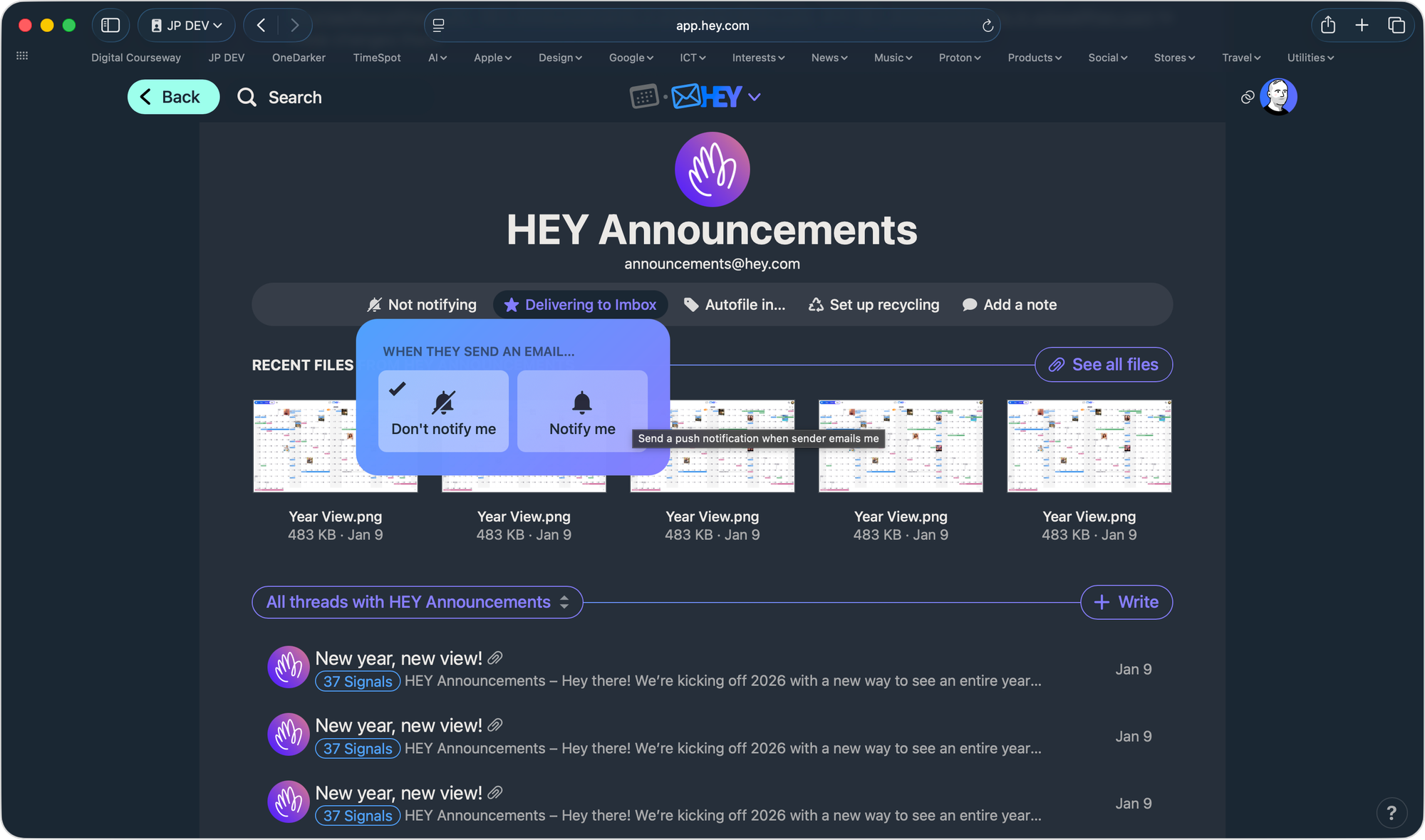
Click / Tap on the notification bell under the contact’s name and choose Notify me.
The Don’t notify me / Notify me option on a contact’s contact page.
Domain Notifications In HEY Mail
Notifications can also be set to include a whole domain.
Click / Tap on the contact’s name in an email or locate the contact in the HEY menu > Contacts to go to their contact page.
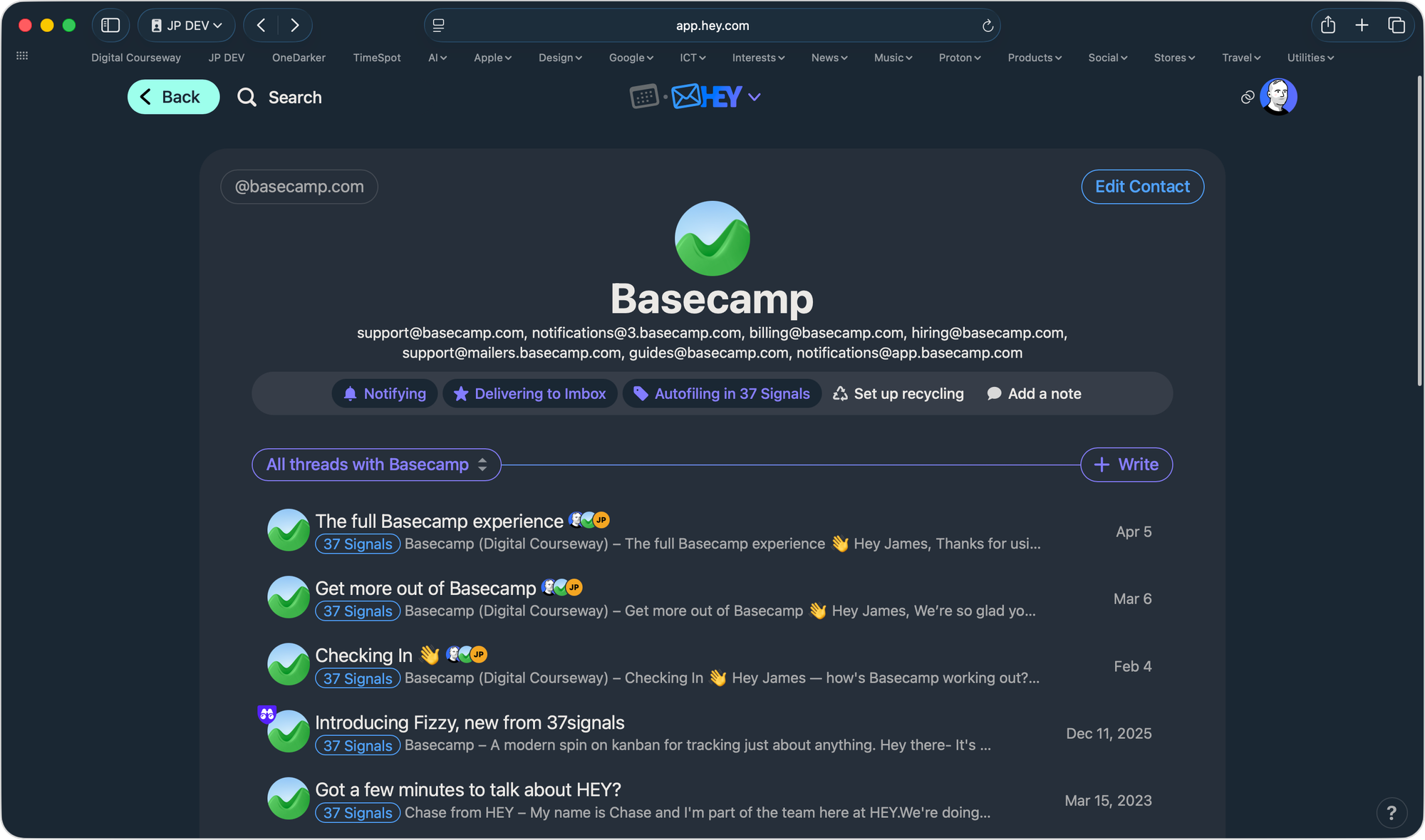
Click on the domain path in the top left corner of the contact’s page (for example @basecamp.com as shown in the screenshot below).
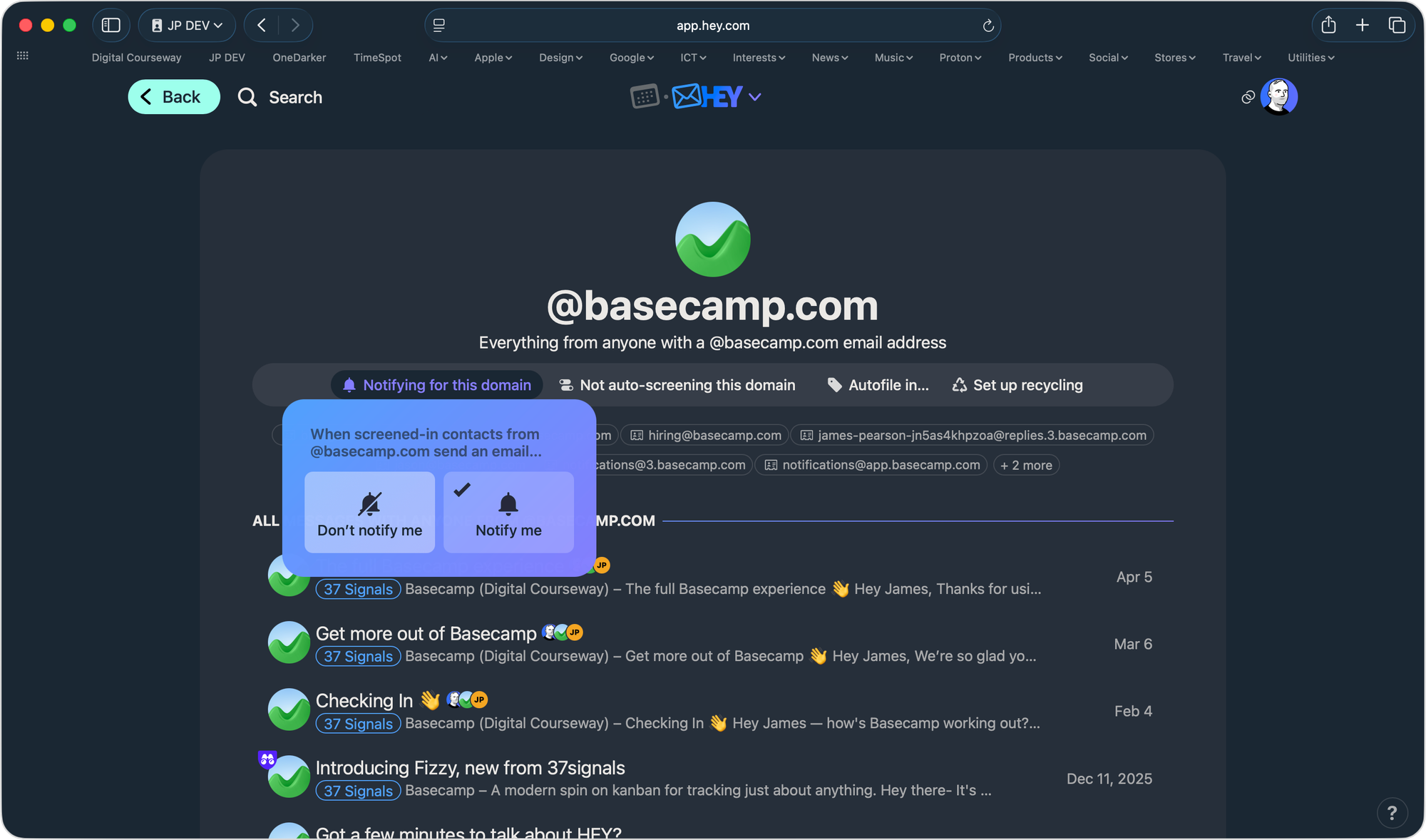
Click / Tap on the notification bell under the domain name and choose Notify me.
The domain path @basecamp.com visible in the top left corner of the contact’s contact page.The Don’t notify me / Notify me option on a domain’s contact page.
Thread Notifications In HEY Mail
It’s also possible to receive notifications from a threaded email conversation.
Click / Tap on a threaded conversation.
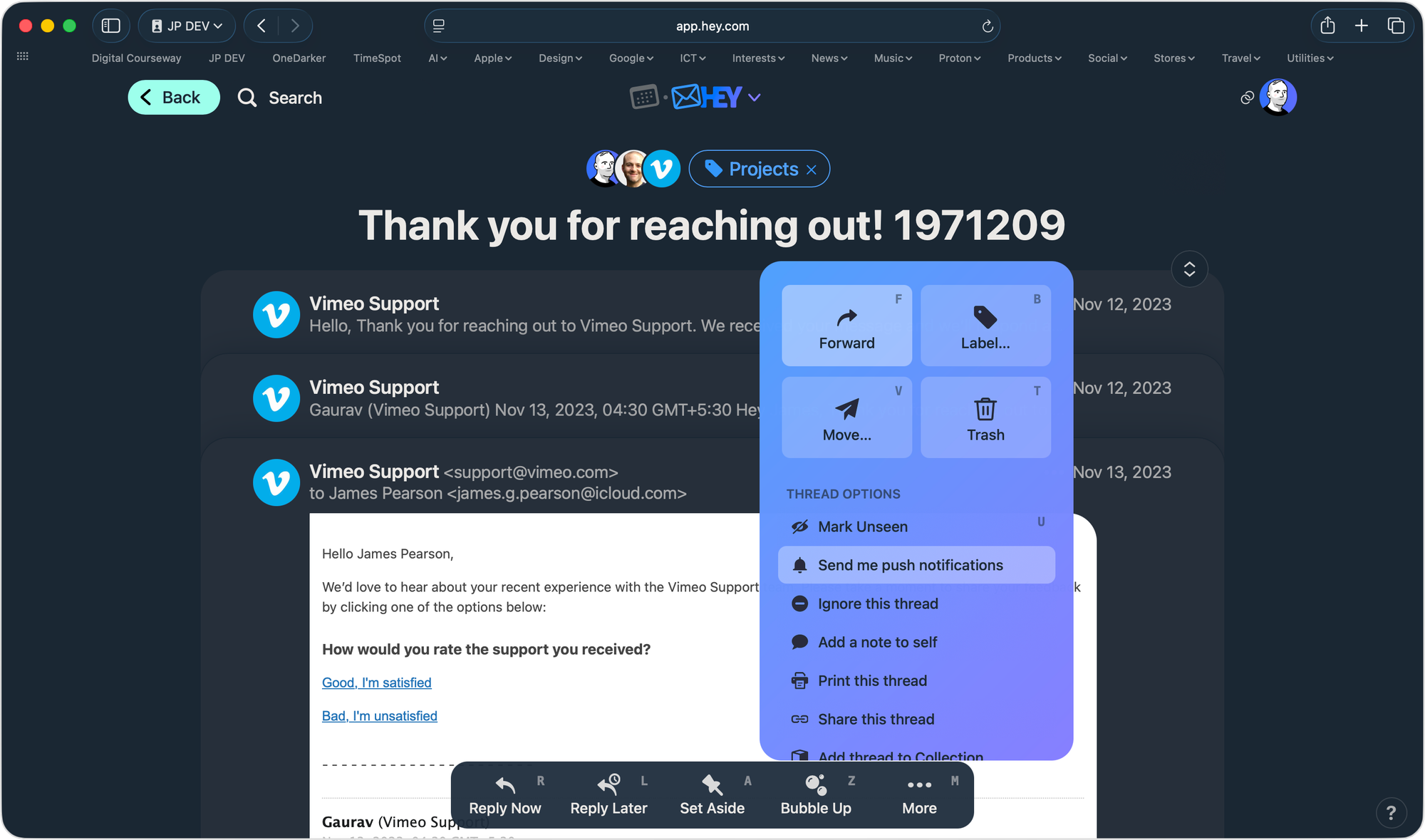
Click / Tap on More and then on Send me push notifications.
The More menu and the Send me push notifications option.
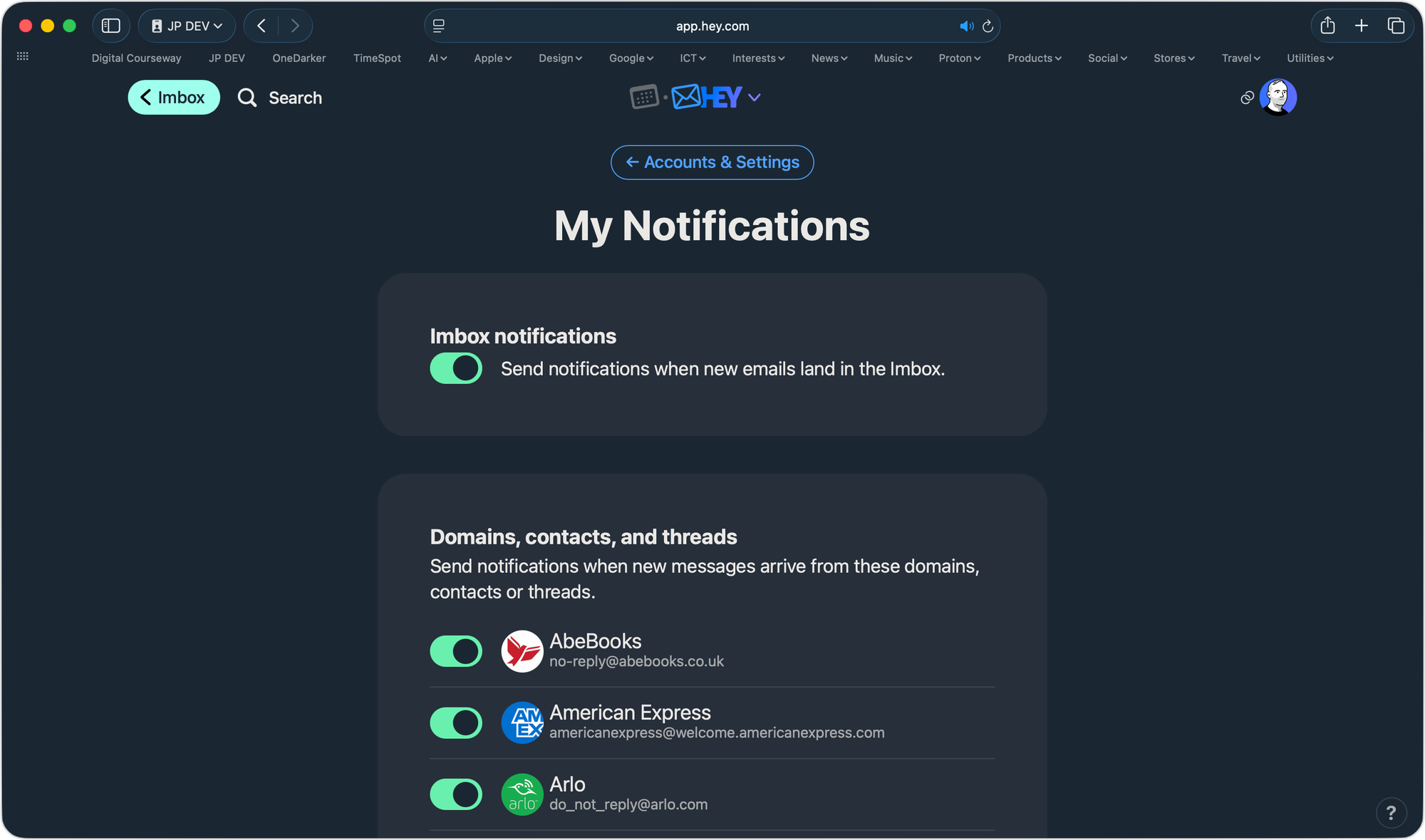
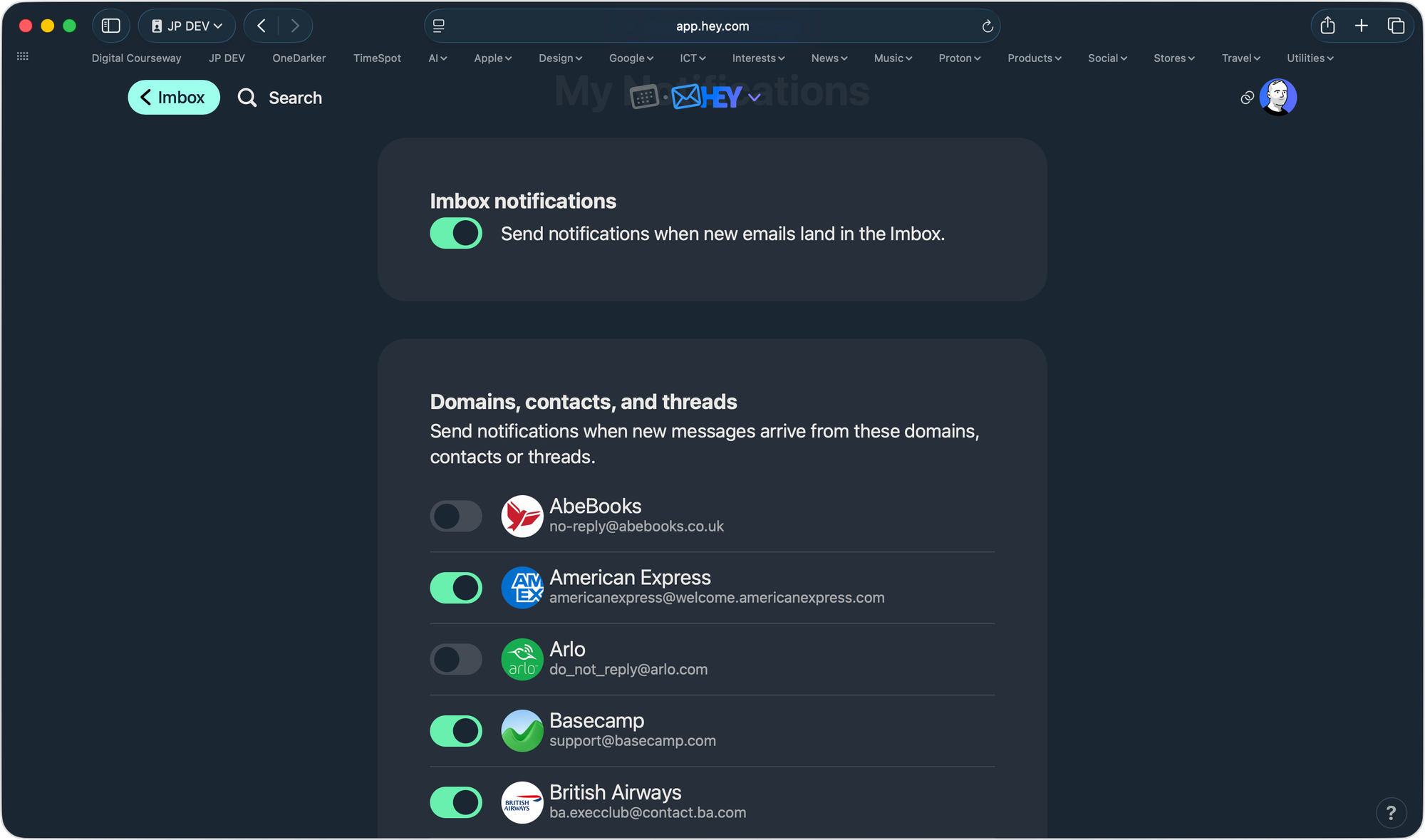
On the Notifications page a list of all those contacts whose emails are set to notify are displayed. Here you can quickly toggle individual contact notifications off from a single place rather than do so one-by-one via the Contacts page. Once the notification has been toggled off, the domain, contact or thread will disappear from this page once refreshed.
List of all notifications enabled for each domain, contact or thread with the option to toggle them on and off.
As HEY state on their website…
Instead of getting push notified for everything, you decide which senders or threads are important enough to warrant notifications. You’re in control.
Originally posted 23 April, 2025. Updated 26 May, 2026. This works in all versions of macOS and Mac OS X.
Writing a post In HEY World. The HEY email service also includes HEY World: a place for sharing your ideas, and thoughts with the world. We will show you how to write and post using HEY World.
Since iPadOS 13 it has been possible to use a mouse and trackpad natively with the iPad. This can really help to speed up workflows and interactivity with productivity apps in particular. Here we will explain how to connect and configure your devices.
How to add iCloud Drive to the dock in macOS. You can access iCloud Drive from Finder, but for a quick way to see you cloud files you can add a shortcut to the Dock. As the icon for iCloud Drive is inaccessible from the Applications folder, we will show you 2 ways to add this onto the Dock.