How to switch between light and dark mode in macOS. macOS includes several different modes to alter the system’s appearance: Light, Dark and Auto. We’ll show you how to switch between them.
When setting up a new Mac you will be prompted to choose between the three different appearances Auto, Light and Dark. This is a quick and easy way to select a preferred mode from the outset, but if you want to change your choice later on then you’ll need to do the following…
Using System Settings to Switch Appearance In MacOS
Click on > System Settings (you can find the Apple icon in the top left corner of the macOS menu bar. System Settings is also accessible from the Applications folder).
From the list of preferences, click on Appearance.
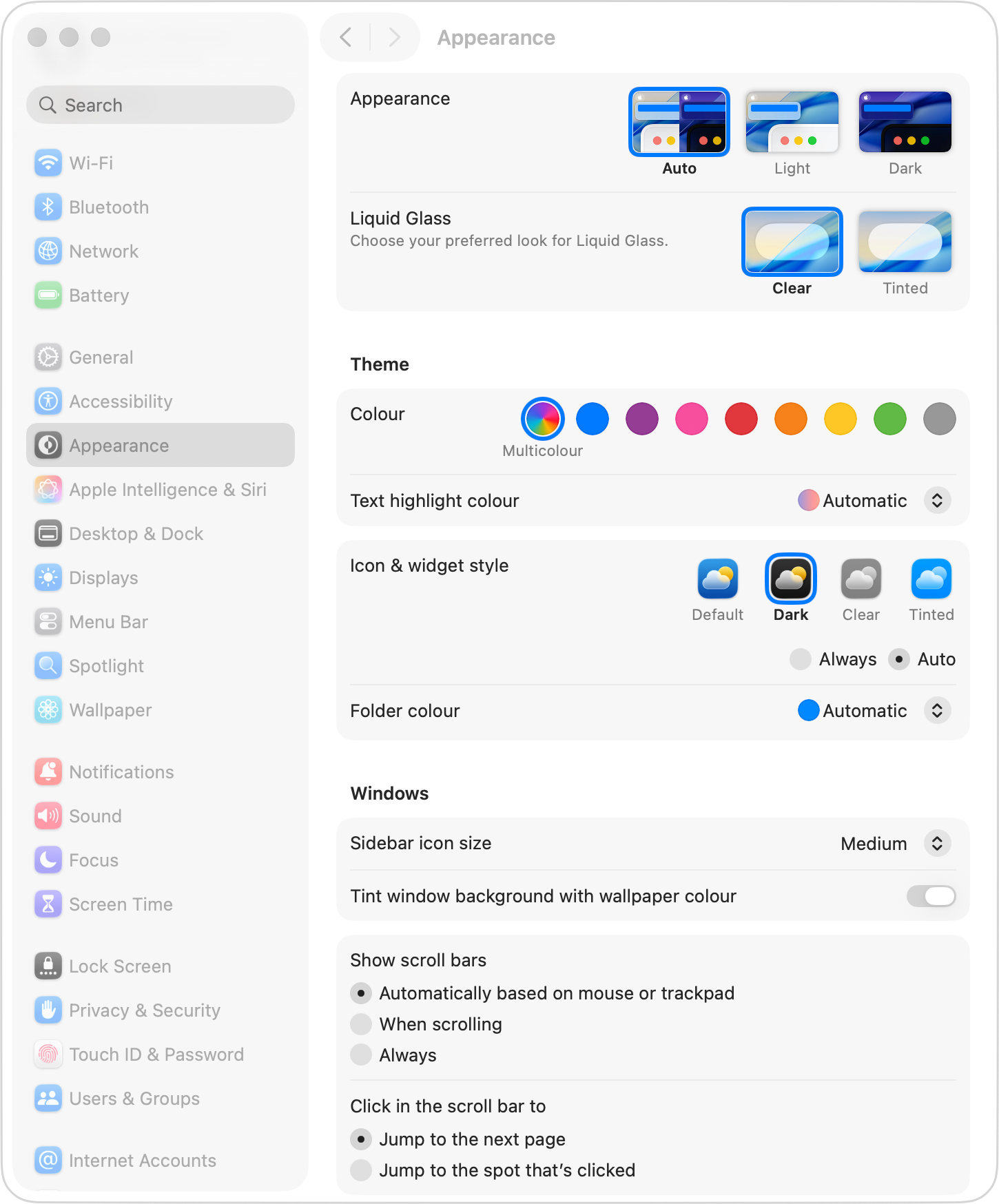
Select the desired mode from the Appearance option: Auto, Light or Dark.
The Appearance options accessible from System Settings > Appearance.
The appearance of the macOS system will update instantly.
Auto mode will automatically toggle between the light and dark appearance depending on the time of day (determined by sunset and sunrise).
Light mode is the default mode on most devices and primarily uses dark text on white backgrounds and a light appearance for buttons, menus and windows.
Dark mode may help to reduce eyestrain in low light environments. It also reduces battery drain on devices such as the MacBook Neo, MacBook Air and MacBook Pro when operating on battery.
These modes will also change various other applications on your system (including 3rd party software) if they are set to take advantage of the appearance change.
::TIP:: It is now commonplace for individual software applications to include their own appearance settings. If such an option includes ‘follow system settings’, then it will also change automatically depending on what option is chosen for the macOS appearance.
Icon & Widget Styles
In the Appearance menu you can also set the icon and widget style to Default (light), Dark, Clear or Tinted.
These act independently of the light and dark mode appearance settings. So even if Dark or Auto is enabled, the icon and widget style will show a lighter palette unless Dark is selected in this section too.
If you want the icons and widgets to mimic the Auto appearance settings do the following...
Under Icon & widget style select Dark.
Select the Auto option directly below this choice to alternate between light and dark icons and widgets, in synergy with the Auto appearance setting if chosen.
Originally posted 12 April, 2025. Updated 24 May, 2026. This works in all versions of macOS and Mac OS X.
How To Manage Your Notifications In HEY Mail. In HEY notifications are kept to a minimum. However, you can get notified of any email that enters the Imbox or of any email you receive from a specific contact, domain or email thread.
Writing a post In HEY World. The HEY email service also includes HEY World: a place for sharing your ideas, and thoughts with the world. We will show you how to write and post using HEY World.
Since iPadOS 13 it has been possible to use a mouse and trackpad natively with the iPad. This can really help to speed up workflows and interactivity with productivity apps in particular. Here we will explain how to connect and configure your devices.