How to switch between applications in macOS. When you have multiple applications open at once there are several ways you can switch between these applications efficiently.
The Dock is a convenient way to jump between active applications on your Mac.
Active applications will be highlighted in the dock by a coloured dot under the applications icon.
Click on the application's icon in the Dock and it will be displayed on screen.
The Dock and active applications shown with a black dot.
Using the Application Switcher
You can use the application switcher to move between your active applications.
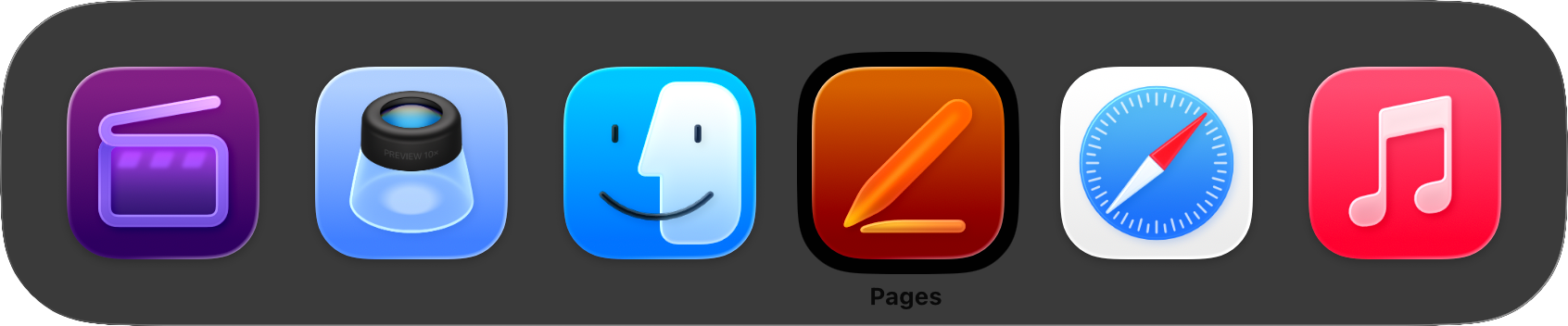
Hold down the command key and press the tab key to reveal the application switcher.
Keep the command key pressed down and then press the tab key again to cycle through the active applications. Release the keys once the application you wish to open is highlighted.
The Application Switcher menu showing the Mail application selected.
Using Mission Control
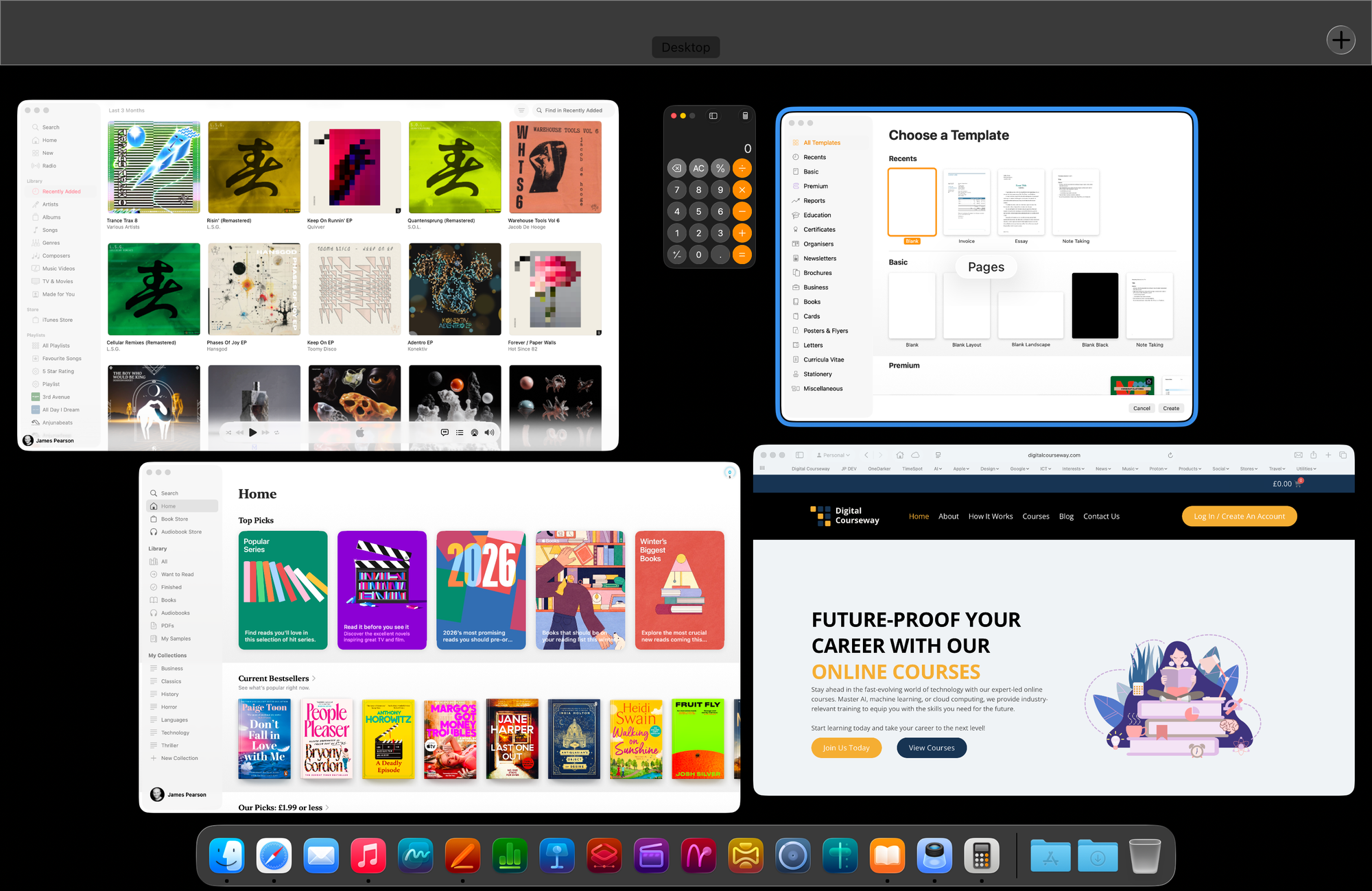
Mission Control provides a good visual overview of all your active applications and windows.
To open Mission Control you can…
Click on the Applications folder and click on the Mission Control application. Alternatively you could use the Apps app to locate Mission Control.
..or..
Swipe up with three or four fingers on a MacBook trackpad or an external Apple Magic Trackpad.
..or..
Double-tap the surface of an Apple Magic Mouse with two fingers.
..or..
Press F3 on your keyboard (or the Mission Control key on a MacBook with a Touch Bar).
To select your application…
Move the mouse pointer over the different windows and a brief explanation of what the application is will appear over the window.
Click on the application window that you wish to open.
The Mission Control feature showing an overview of all active application windows.
::TIP:: When using Mission Control any windows that are minimised in the Dock will not be displayed. Only windows open on the desktop will be shown in the overview.
Using Stage Manager
Stage Manager was introduced in macOS 13 Ventura and is another program that can be used to organise your applications and windows. By default this program is switched off.
To activate Stage Manager…
Click on > System Settings* (you can find the Apple icon in the top left corner of the macOS menu bar. System Settings is also accessible from the Applications folder).
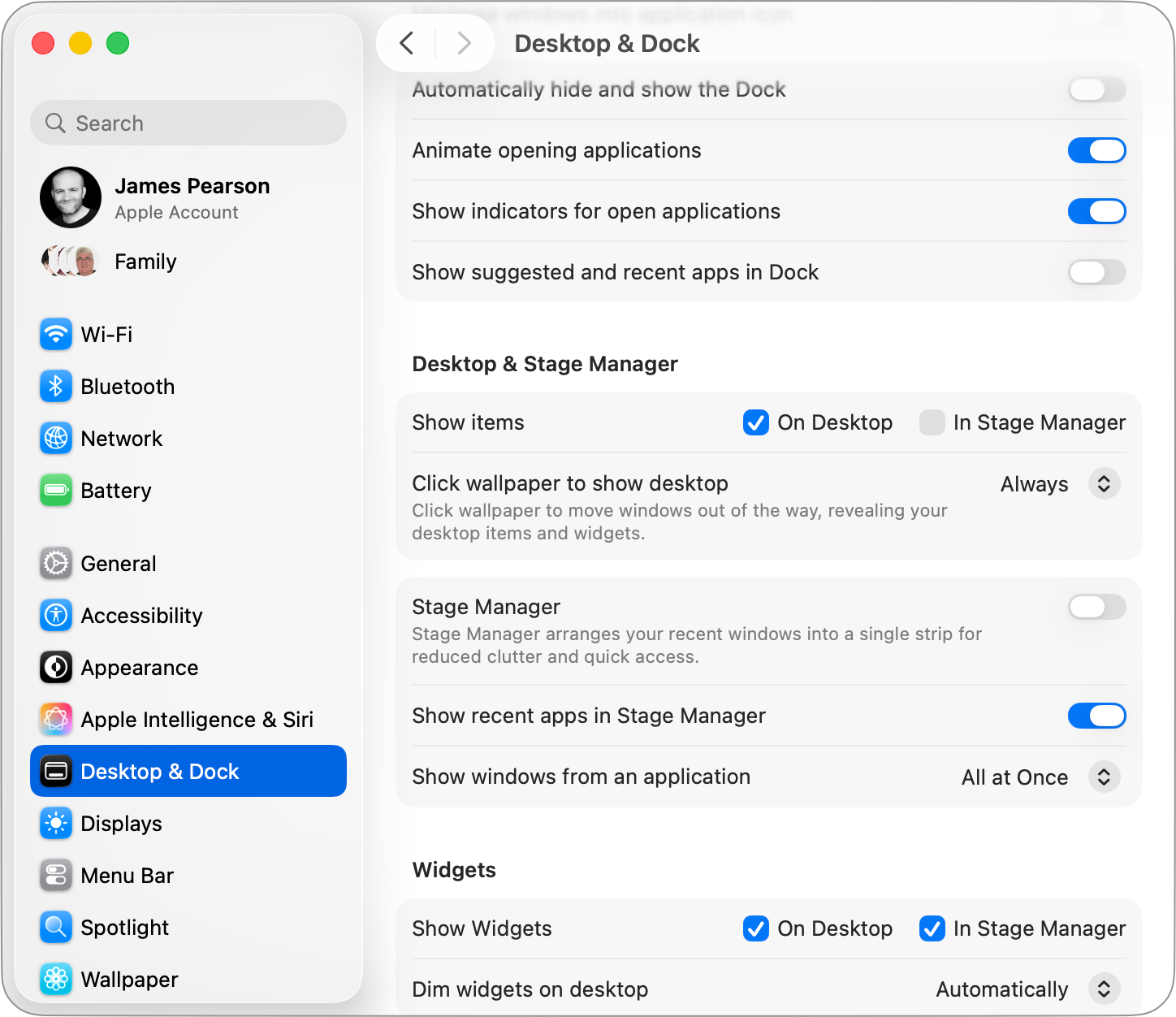
From the list of settings, click on Desktop & Dock.
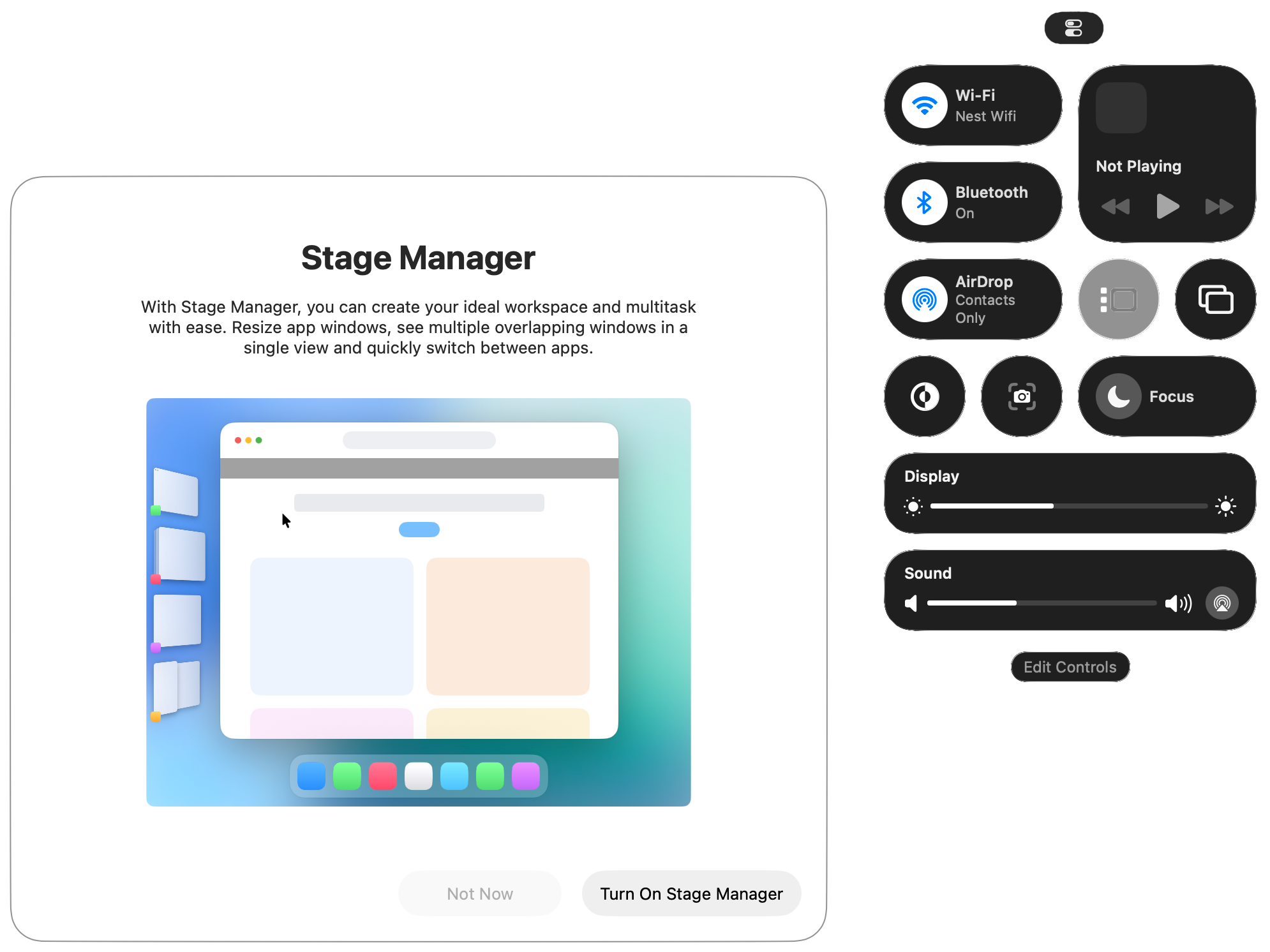
Toggle Stage Manager to on. Alternatively you can also toggle this on by clicking on the icon on the Control Centre menu in the top menu bar on the right-hand side.
The Stage Manager option displayed in the settings menu for Desktop & Dock with the option to turn on or off. Other options are present to customise the tool.The Stage Manager icon visible from the Control Centre menu. Toggle Stage Manager on and off.
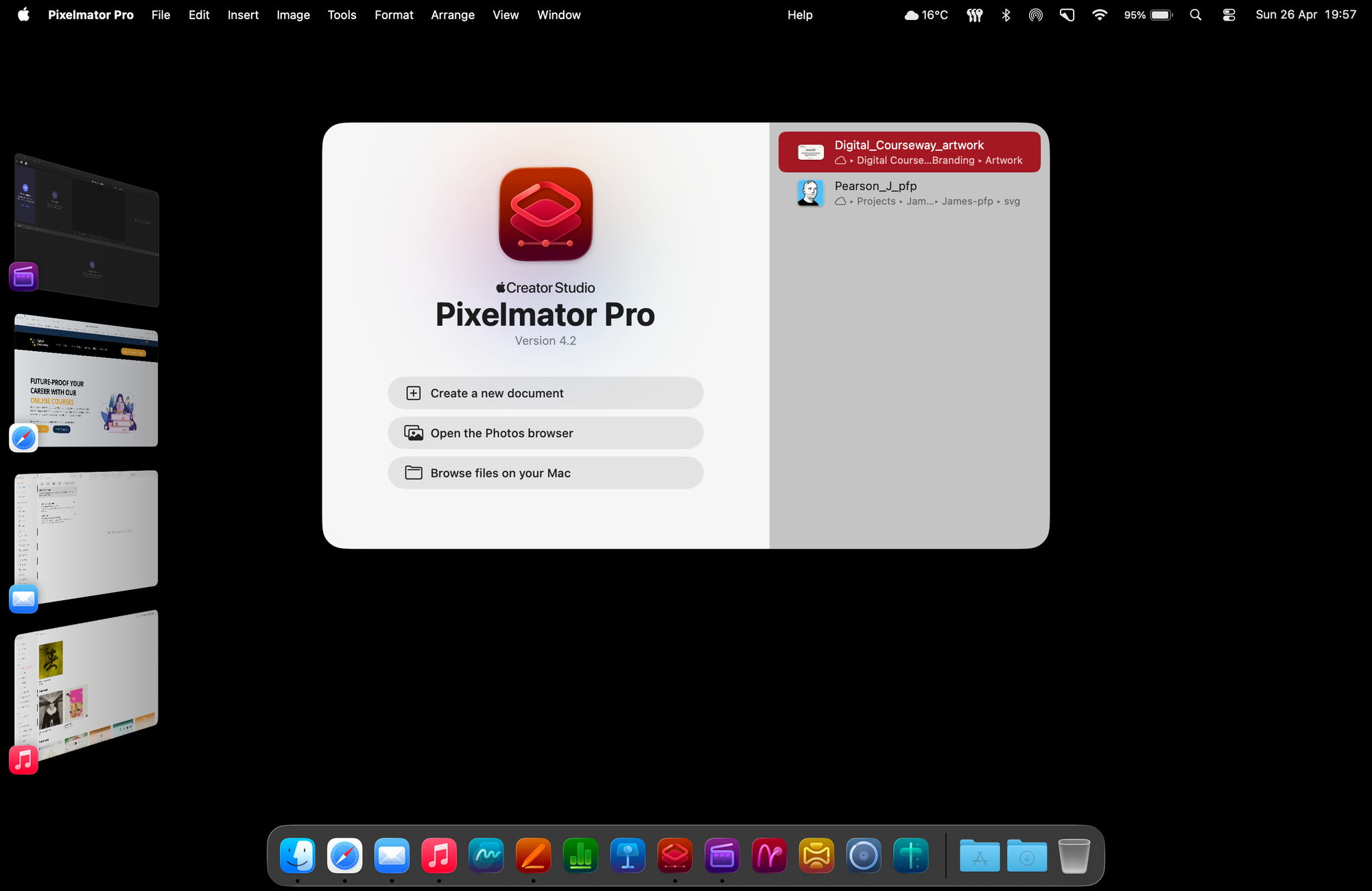
Once activated all currently open applications will move to the left-hand side of the screen for easy access. The application you're working with will be displayed at the front.
Click on an application on the left-hand side to display its window on screen. The application that was currently displayed will then move to the left.
The view of the screen once Stage Manager is active showing open applications on the left-hand side whilst the application currently being used is displayed on screen.
::TIP:: The Stage Manager Settings… option from System Settings > Desktop & Dock includes further customisations on how windows are displayed and whether or not icons on the desktop are visible.
Originally posted 6 April, 2025. Updated 26 April, 2026. With the exception of Stage Manager these options work in all versions of macOS and in most versions of Mac OS X. The Stage Manager application was introduced in macOS 13 Ventura.
How To Manage Your Notifications In HEY Mail. In HEY notifications are kept to a minimum. However, you can get notified of any email that enters the Imbox or of any email you receive from a specific contact, domain or email thread.
Writing a post In HEY World. The HEY email service also includes HEY World: a place for sharing your ideas, and thoughts with the world. We will show you how to write and post using HEY World.
Since iPadOS 13 it has been possible to use a mouse and trackpad natively with the iPad. This can really help to speed up workflows and interactivity with productivity apps in particular. Here we will explain how to connect and configure your devices.